Change Primary Theme Color
For those students who utilize Piazza for multiple courses, you can quickly and visually differentiate between your classes by customizing the primary color of Piazza.
1. In your Piazza Q&A account, your main theme color can be customized by navigating to the theme menu illustrated below:
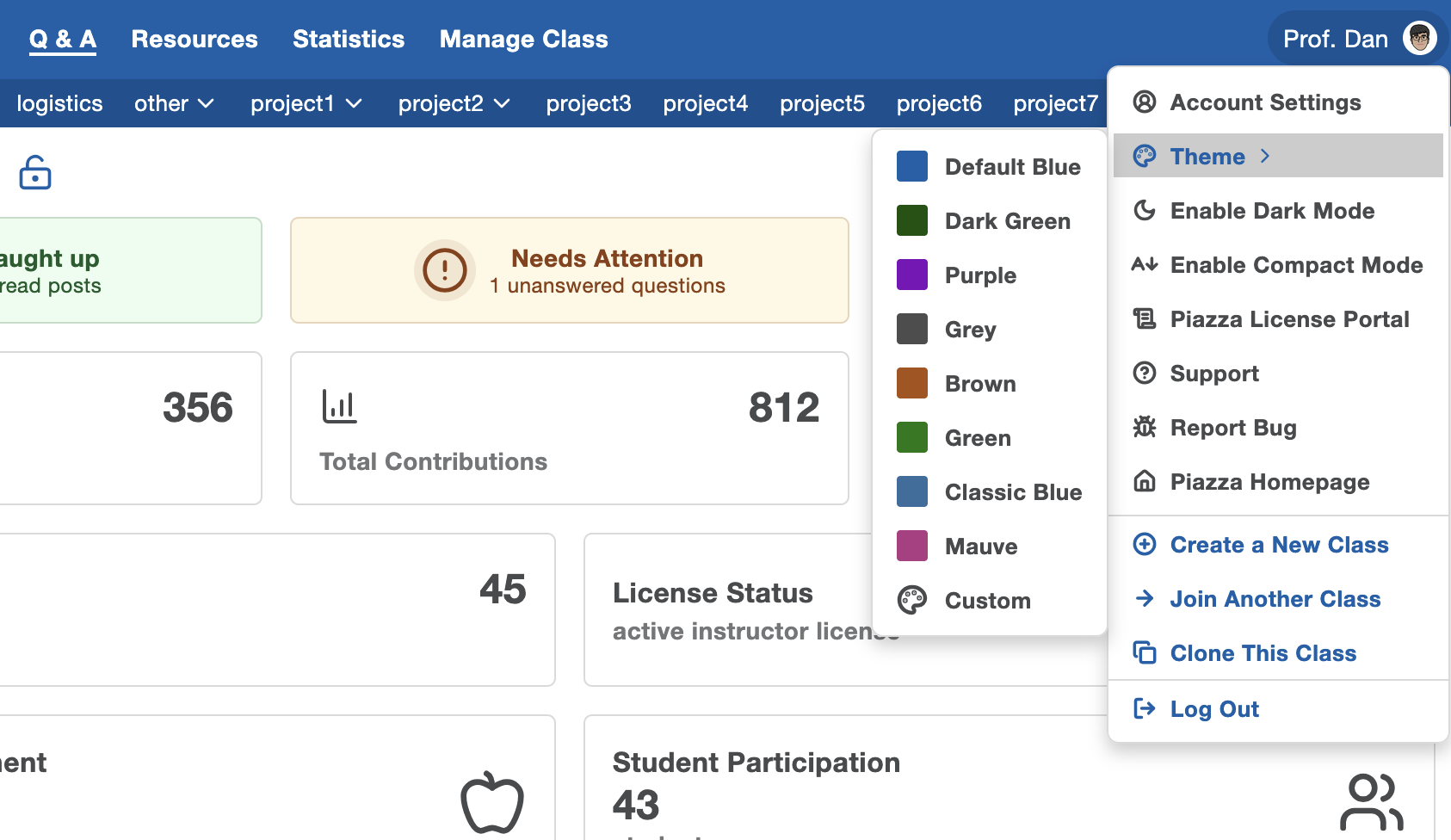
2. The following menu has some preselected colors to choose from. If you like, you can also set your own custom color by clicking Custom:
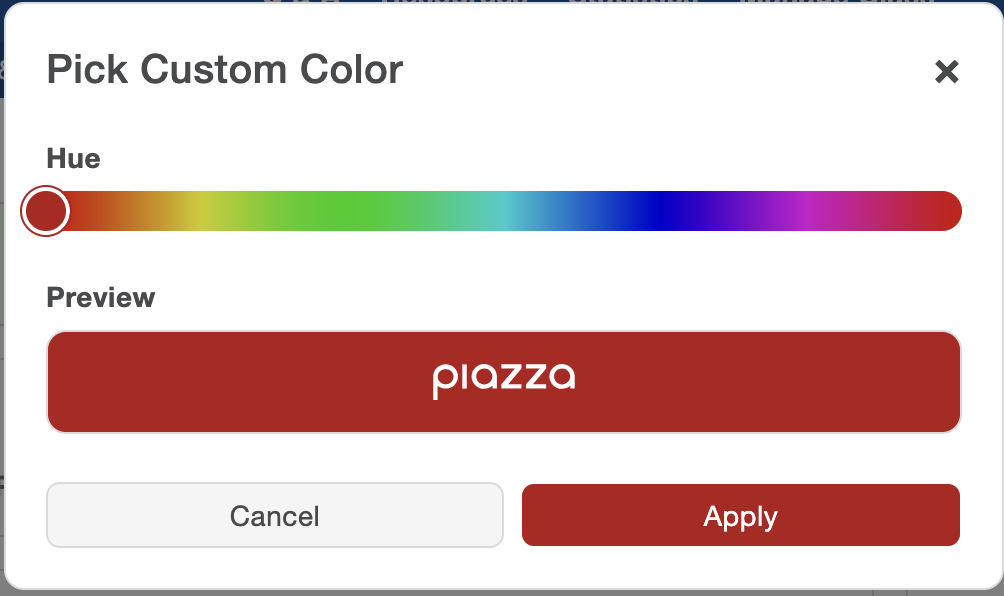
From here you can click and drag on the Hue slider to choose a custom color. Once you're finished, just click Apply!
3. Navigating to another course will display that courses' selected theme color:
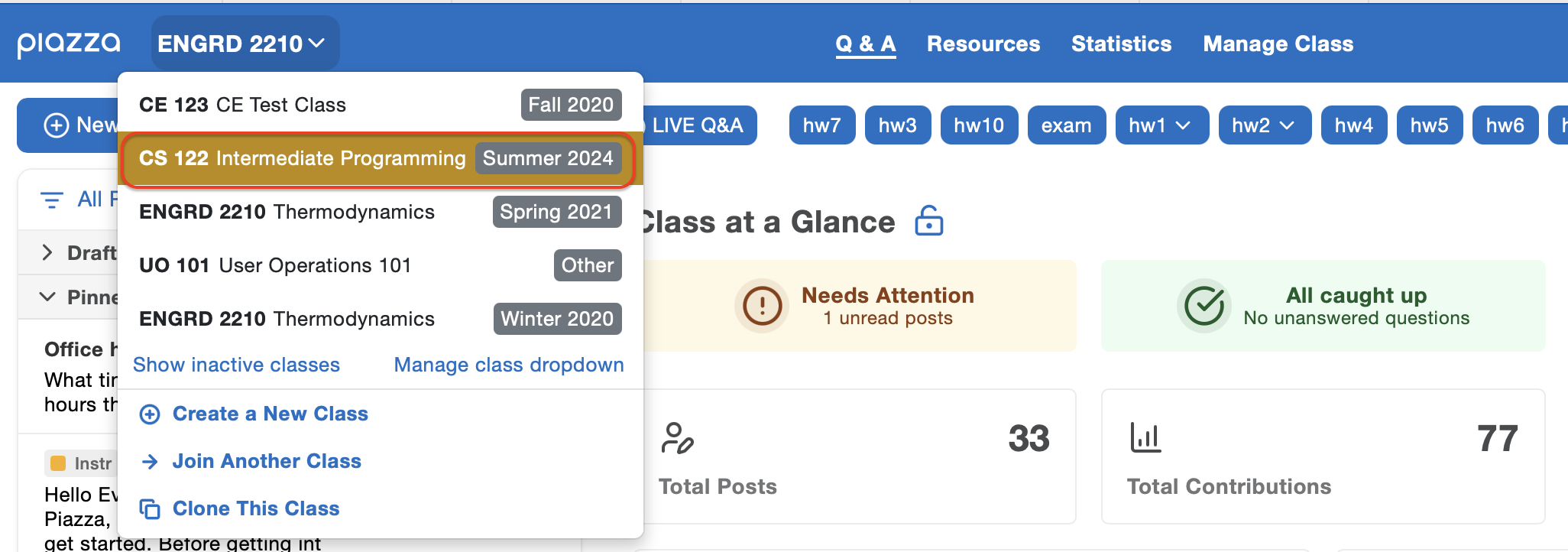
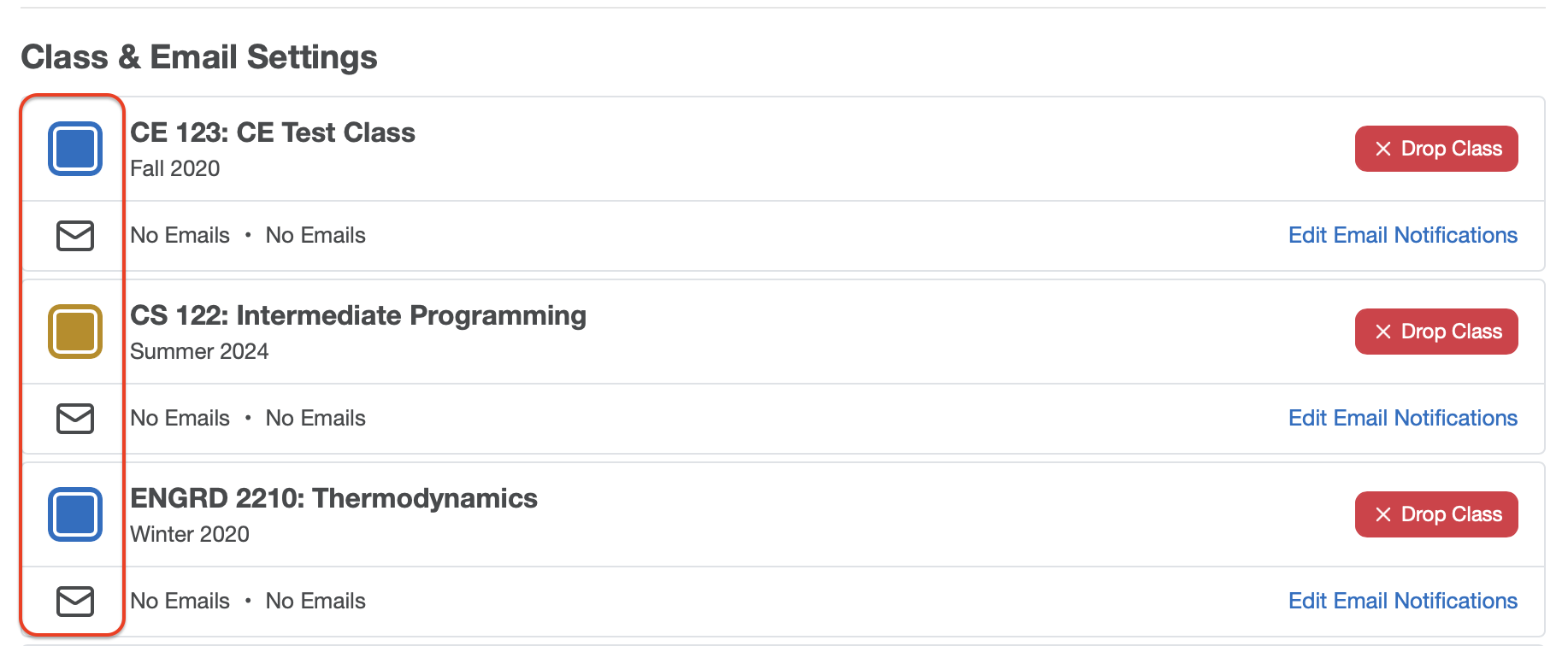
Additionally, for those who have multiple Piazza courses, an efficient way to change any course's theme color can be found through Account Settings:
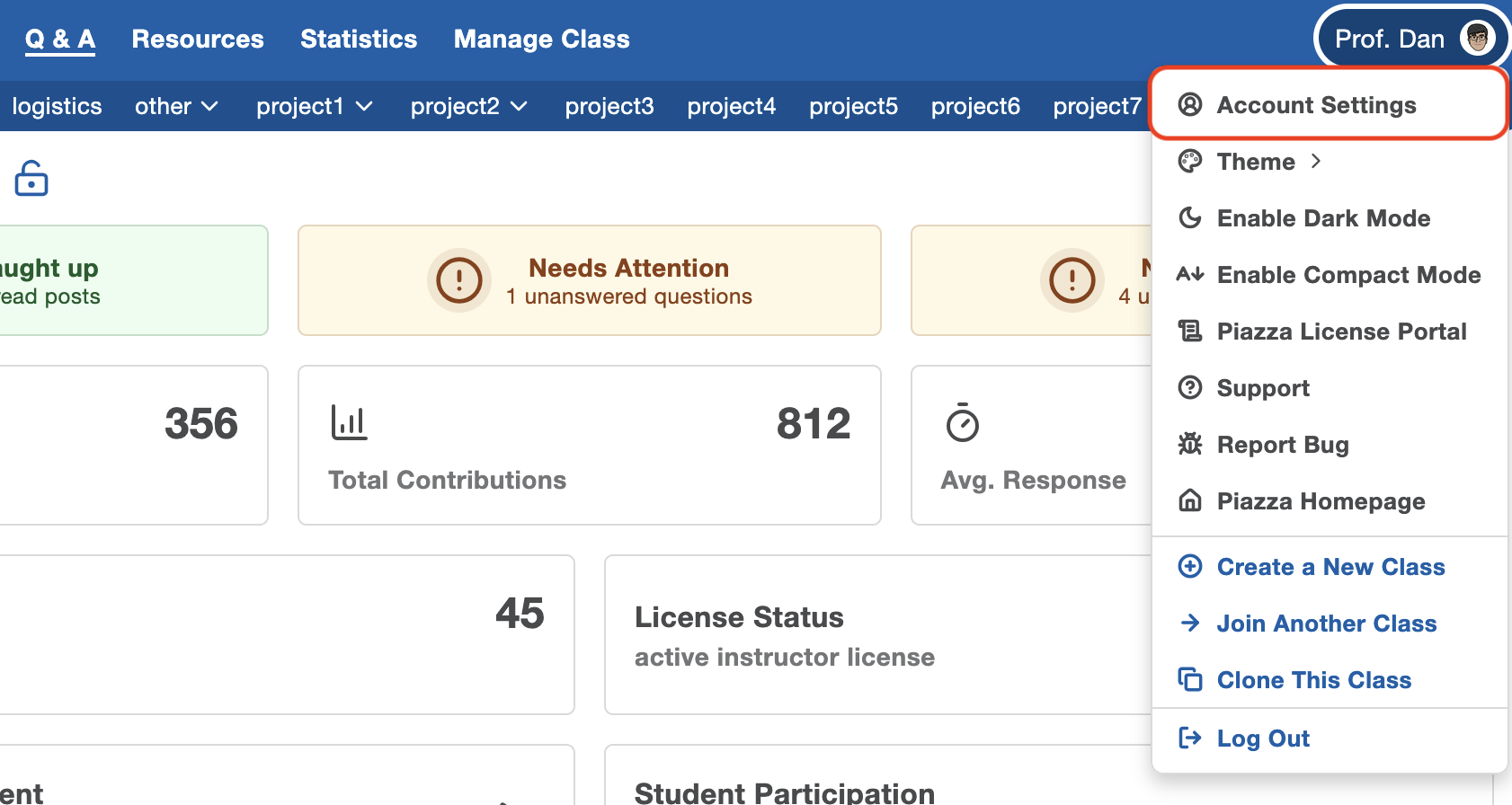
On the resulting page you can view all your Piazza courses' settings and will be able to adjust the top bar color for each accordingly under Class & Email Settings:
Interface Settings
Piazza has two additional interface settings:
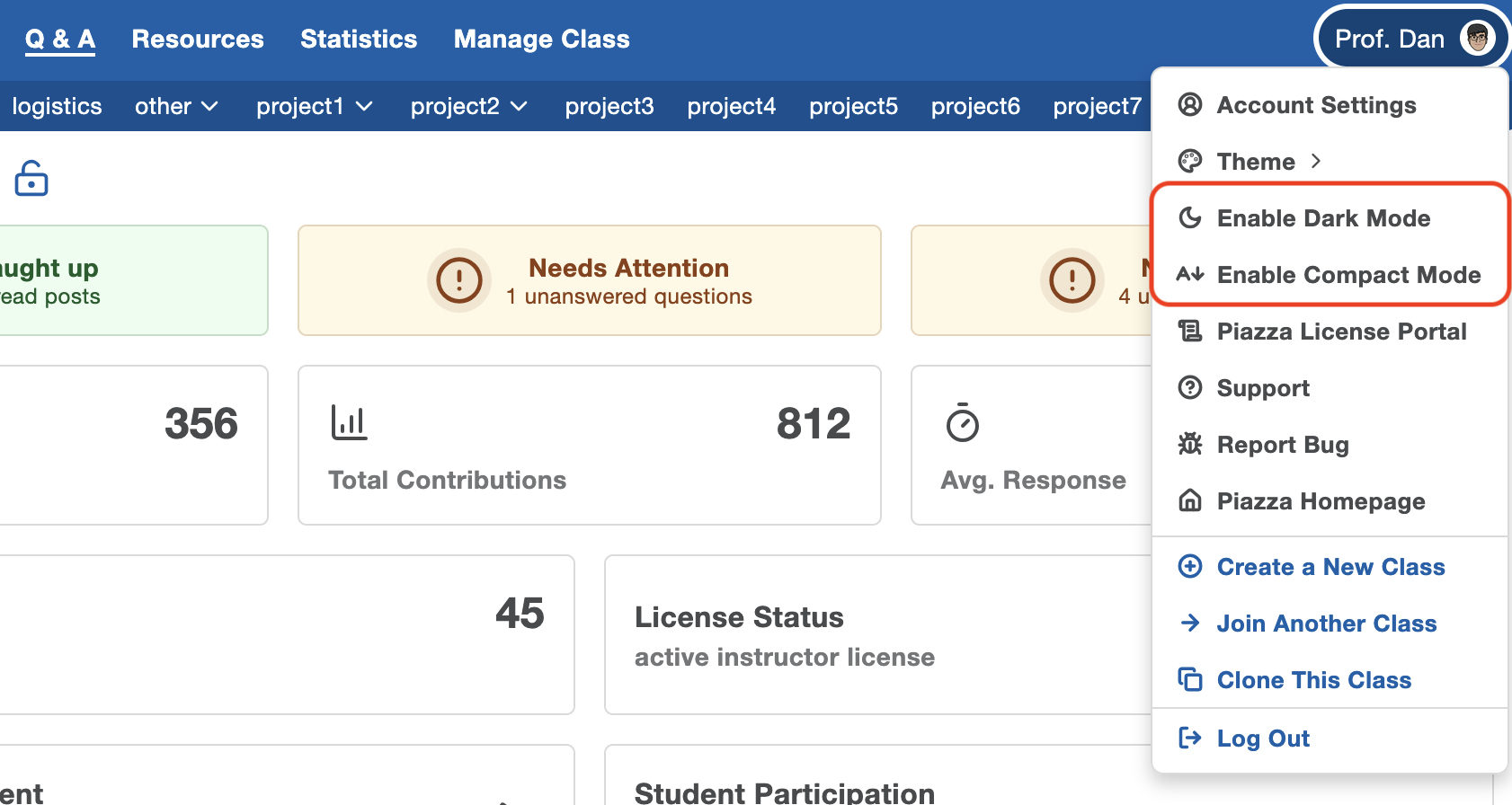
Dark Mode: Changes the default white background and other elements to be darker.
Compact Mode: Increases the density of UI elements to help show more content on the page at once.
These settings apply to your Piazza account, regardless of what class you're viewing.
You can find these options from your account drop-down menu:
Or, you can also find the same controls at the very bottom of the Account Settings page, underneath the Interface Settings label.